


Charge an item to a member or a group
Assign billable items for the next invoicing run
Manage members
Access item linking
Click the menu INVOICE in the main menu, then select Link an item. This interface lets you assign billable items to your club's members.
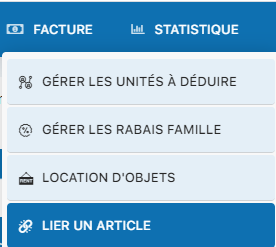
INVOICE menu → Link an item
Fill in the linking form
A form appears to let you enter the details of the item to charge. Here's how to fill it in:
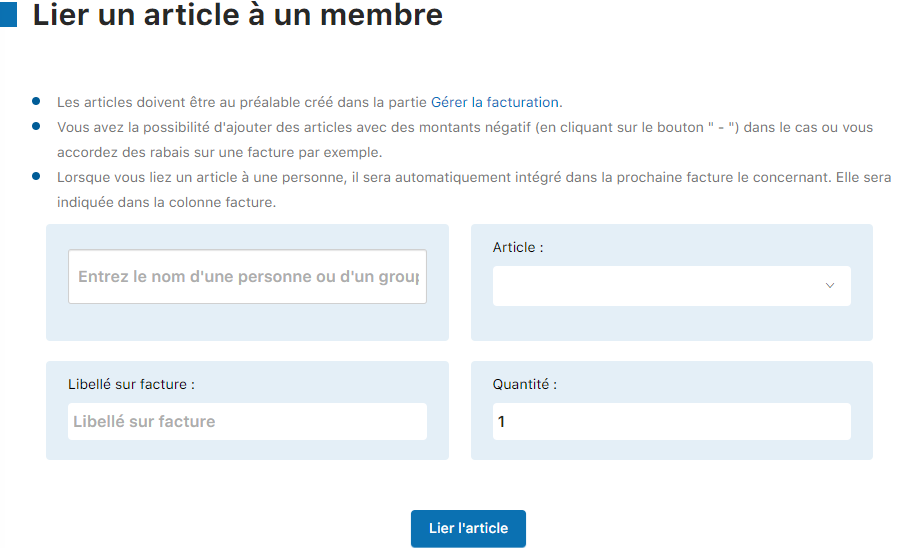
General view of the form
Select the member
Type the first letters of the member's or group's name (for example "Dupont" or "Dupont family") in the member field. A list of suggestions will appear. Click the desired member or group to select it.
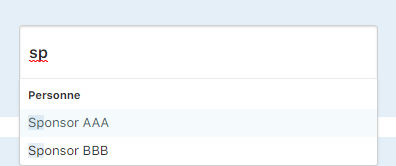
Type to autocomplete and select the member
Select the item
Click the "Item" field to open the drop-down list of available items. Select the item you want to charge to the member.
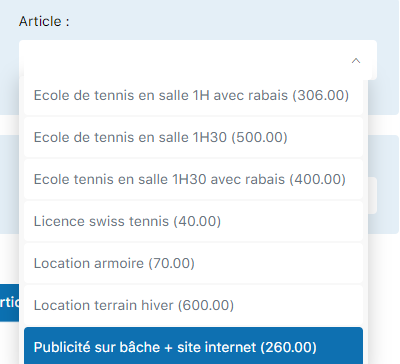
List of available items
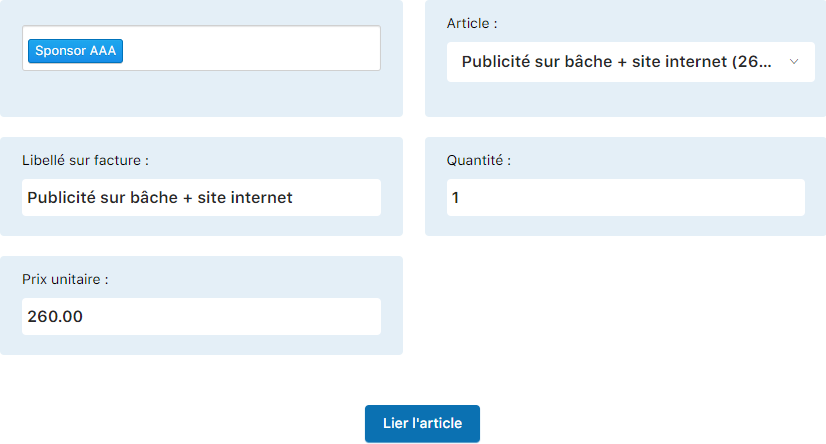
Click the item to charge
Enter the quantity
Enter the quantity of items to charge. You can enter a decimal number. For discounts or rebates, enter a negative quantity (for example "-1" for a discount).
Save the charge
Once all fields are filled in (member, item, quantity), click the Link the item button to confirm. The item will be added to the member's invoicing cart and will appear on their next invoice.

Click "Link the item" to save
💡 Helpful tips
Billable items: Use this feature to add extra charges (lessons, equipment, registration fees, additional services) beyond the standard subscription.
Negative amounts: To apply a discount or rebate, create an item with a negative amount and charge it with a positive quantity.
Group invoicing: If the member is part of an invoicing group, the item will be charged to the group's billing manager.
⚠️ Important: Charged items will appear on the next invoice generated for this member. Make sure all extra items have been charged before proceeding with invoicing.
Plugin.ch Manual | Chapter 8: Manage members