


Send invoices by email
Manage invoices
Sending by email is a modern alternative to printing. Plugin.ch fully automates this process with professional templates. This tutorial guides you through configuring and sending invoices by email.
Send invoices not yet sent
You have created invoices in email format and want to send them to your members. Here's how:
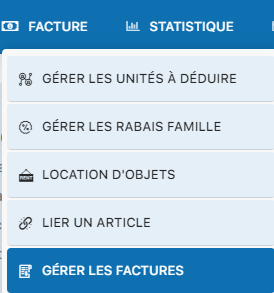
Access invoice management
Go to INVOICE / MANAGE INVOICES.
Check the email template settings
Before sending, make sure the email subject is configured in SETTINGS / MANAGE INVOICING. This subject will appear in your members' inboxes.

Identify email invoices
Invoices in email format are identified by an envelope icon in the status column.

Select the group containing the email invoices
Open the group that contains the invoices to send.
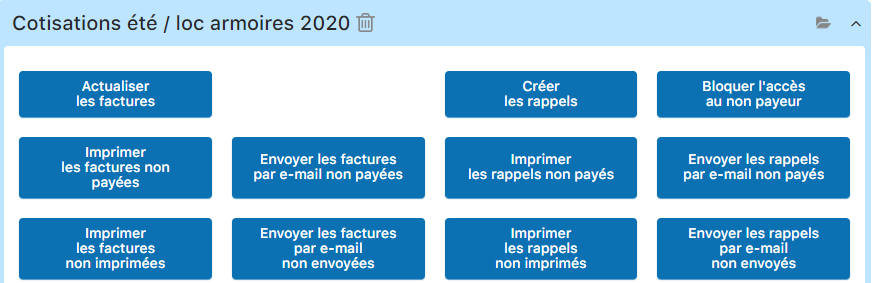
Click "Send unsent invoices by email"
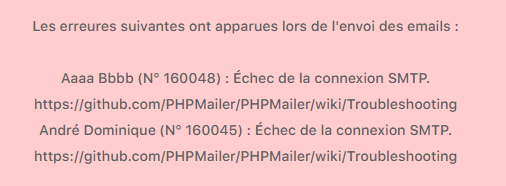
This action starts sending all email invoices that have not yet been sent. The system will display a confirmation or error message depending on the SMTP connection status.

Troubleshoot SMTP connection issues
If sending fails with an SMTP error, here's how to diagnose and fix the problem:
Access the email configuration
Go to SETTINGS / MANAGE EMAIL SENDING.
Test with the recommended SMTP server
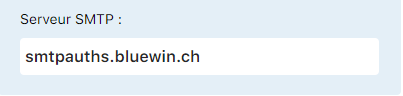
If you are a Bluewin subscriber, try smtpauth.bluewin.ch. Check that your SMTP username and password are correct. If the error persists, contact your email provider or Plugin.ch support.
If a member has not received the invoice
Several reasons can explain why an email was not received. Here's how to investigate and fix it:
Check the email address
Go to the member's profile and check that the email address is correct. Typos are the main cause of emails not being received.
Fix it via "Edit invoice"
Open the invoice for editing and correct the email address if needed.

Resend the invoice
Once the address is corrected, you can resend the invoice. Return to the invoice list and use "Send unsent invoices by email", or change the invoice status to mark the new sending.
- Test sending a test email before launching a bulk send
- Make sure the email template subject is professional and clear
- Keep track of who has received the invoice via the "email sent" status
- Reminders by email work according to the same principles
Plugin.ch Tutorial — Manage invoices